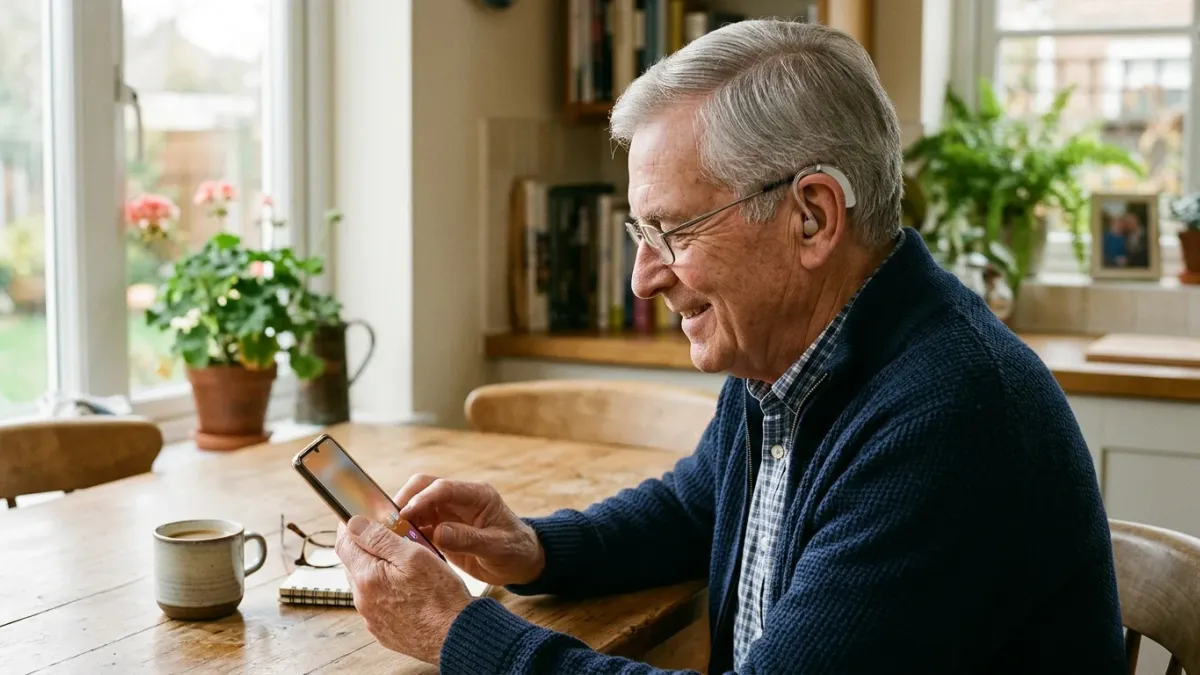
Juno Senior Launcher is an Android home screen interface built specifically for older adults, combining simplified controls, automatic volume protection, and visual notification alerts. When hearing fades with age, an ordinary smartphone quickly becomes a source of daily frustration: ringtones go unheard from the next room, voices sound tinny on calls, or a hearing aid whistles uncomfortably as soon as the handset touches the ear. With the right combination of Android hearing accessibility settings, proper hearing aid pairing, and a calm, uncluttered home screen, staying in touch with family remains effortless and reliable.
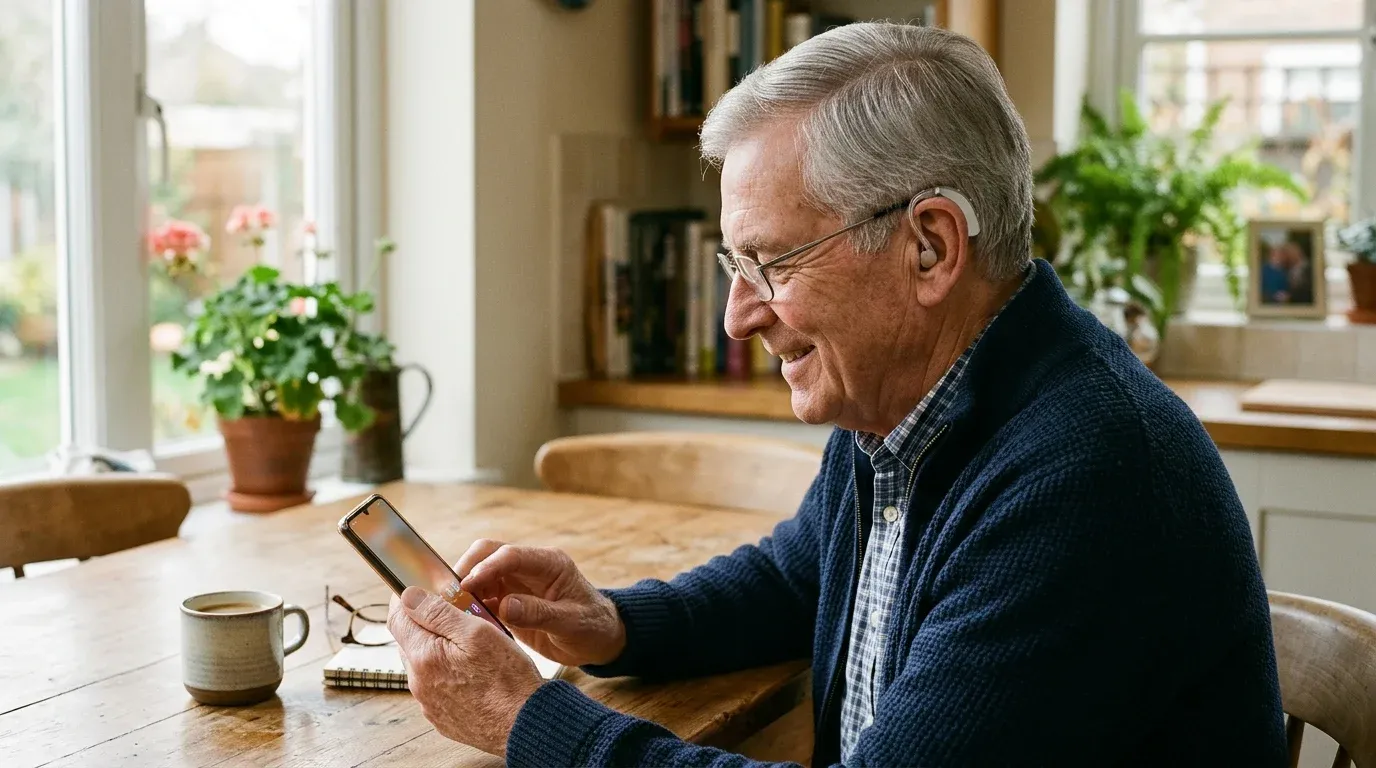
In this practical step-by-step guide for family caregivers, we explain everything you need to configure—from technical standards like ASHA, LE Audio, and telecoils to manufacturer differences and visual alerts right on the home screen.
Why Do Standard Smartphones Cause Problems for Seniors with Hearing Loss?
Standard smartphones rely on quiet system alerts, high-pitched tones, and tiny status icons that are easily missed with age-related hearing loss. On top of that, acoustic feedback between phone speakers and hearing aids, along with cluttered interfaces, makes everyday calling stressful.
From countless conversations with families and older adults, we see four recurring situations where communication breaks down:
- Missed ringtones and message chimes: With age-related high-frequency hearing loss (presbycusis), the exact high-pitched chimes smartphones use by default are the first sounds to disappear. If the phone is in a handbag or another room, calls go completely unnoticed.
- The accidental volume-down trap: Many family members tell us their parents inadvertently press the side volume-down button simply while picking up the phone or slipping it into a pocket. Afterward, the phone stays silent for days—leaving everyone worried.
- Feedback and whistling in the hearing aid: Pressing a standard smartphone earpiece directly against the microphone of a behind-the-ear (BTE) hearing aid often triggers shrill whistling or unpleasant echoing.
- Difficulty following speech in noisy rooms: When a TV is playing or a café is bustling, standard phone calls lack visual cues like facial expressions and lip movement. Meanwhile, missed alerts on Android only show up as tiny icons in the top status bar.
Which Hearing Aid Standards Should a Smartphone Support?
Modern Android phones connect to hearing aids either directly over Bluetooth (via ASHA or Bluetooth LE Audio) or, for older models, through Hearing Aid Compatibility (HAC) and an inductive telecoil. Which option fits best depends on the age of both the hearing aid and the smartphone.
Before buying a new phone for your parents or configuring an existing one, it helps to understand three key technical standards:
- ASHA (Audio Streaming for Hearing Aids): The established Android standard (widely supported since Android 10) that allows many current Bluetooth hearing aids from brands such as Phonak, Oticon, Signia, Starkey, and Widex to stream calls and voice messages directly to both ears while saving battery. (Note: Some Phonak models use classic Bluetooth instead, which can make pairing even simpler.)
- Bluetooth LE Audio (Low Energy Audio): The newer Bluetooth standard available on recent smartphones and latest-generation hearing aids. It delivers even clearer speech, lower latency, and reduced battery drain.
- HAC Ratings (M3/M4 and T3/T4) & Telecoil (T-coil): If your parent wears an older hearing aid without Bluetooth, Hearing Aid Compatibility (HAC) is essential. An M3 or M4 rating indicates minimal interference during normal microphone calls held to the ear, while T3 or T4 confirms clean compatibility with the hearing aid’s inductive telecoil (T-coil).
💡 Practical tip on choosing a device: On most current models from Samsung (One UI), Google Pixel, Motorola, Xiaomi, as well as senior-focused phones from Doro or Emporia, hearing accessibility options are built right into system settings—though exact menu labels vary slightly by brand.
How Do You Set Up an Android Smartphone for Hearing Loss and Hearing Aids?
Start directly inside Android’s Accessibility settings: pair the hearing aid, turn on Mono Audio and Flash Notifications, and check brand-specific hearing enhancements. These adjustments take about ten minutes and improve speech clarity right away.
Follow this order on your parent’s smartphone:
1. Pair the Hearing Aid via Bluetooth
- Google Pixel & Motorola (stock Android): Open Settings -> Connected devices -> Pair new device or Settings -> Accessibility -> Hearing devices.
- Samsung (One UI): Go to Settings -> Accessibility -> Hearing enhancements (or Connections -> Bluetooth).
- Xiaomi (HyperOS / MIUI): Open Settings -> Bluetooth or Additional settings -> Accessibility -> Hearing.
- Briefly switch the hearing aids off and back on (or open and close the battery door) to enter pairing mode. Once both sides are connected, calls stream straight to the hearing aids with zero speaker feedback.
2. Enable Mono Audio and Audio Balance for One-Sided Hearing Loss
If a parent hears significantly worse in one ear than the other, normal stereo audio can cause parts of a conversation or alert sound to get lost.
- Under Accessibility / Hearing enhancements, switch on Mono audio so both sound channels play identically in both ears.
- Use the Audio balance (Left/Right) slider to shift sound toward the stronger ear.
3. Turn On HAC / Hearing Aid Compatibility
On several Android phones (including Samsung and Pixel devices), you will find a Hearing aid compatibility (HAC) toggle inside the Phone app settings (Phone app -> three-dot menu -> Settings -> Accessibility). Enable this if your parent uses a non-Bluetooth hearing aid to minimize buzzing and electromagnetic interference.
4. Activate Flash Notifications and Live Caption
- Flash notifications: Under Accessibility -> Flash notifications, enable the camera flash or a brief screen flash for incoming alerts—invaluable in the evening when hearing aids are charging on the nightstand.
- Live Caption: On many modern Samsung and Pixel phones, Accessibility -> Live Caption transcribes spoken words in videos and voice messages as large on-screen text in real time.
How Does Juno Senior Launcher Help Seniors with Hearing Loss Every Day?
Juno Senior Launcher prevents accidental muting, reinforces missed alerts visually on the home screen, and simplifies calls and messaging through large contact tiles. While Android optimizes audio at the system level, Juno ensures nothing gets overlooked or accidentally changed in daily use.
Based on feedback from families, five Juno features work together seamlessly for seniors with hearing loss:
1. The 3-Tier Notification System with Visual Amplifier
Introduced in Juno version 1.0.6, a thoughtful 3-tier notification system replaces tiny Android status icons with unmistakable visual cues:
- Tier 1 – Plain-Text Summary Card: At the top of the home screen, a large info card states clearly what was missed (e.g., “1 missed call” or “3 new WhatsApp messages”). One tap opens the right app immediately.
- Tier 2 – Counter Badges on App Tiles: A prominent red dot with a counter shows unread items directly on app tiles (direct contact tiles remain intentionally badge-free to avoid confusion).
- Tier 3 – Visual Notification Amplifier: Inside the PIN-protected admin area (Home Screen & Appearance -> Notifications), you can enable a gentle pulsing animation with an enhanced red border. Even if a ringtone went unheard, the pulsing tile catches the eye immediately.
2. Automatic Volume Protection
Pressing the side buttons while lifting the phone from a table or carrying it in a pocket quickly drops volume to zero. Juno’s Volume Protection detects accidental volume reductions and automatically restores the ringtone to your chosen minimum level. You can find more details and complementary steps in our guide to preventing parents from muting their phone.
3. Clear Haptic Feedback
People who cannot hear faint keypad clicks often tap multiple times because they are unsure whether a press registered. Juno delivers a short, distinct vibration with every tap so your parent feels immediate confirmation in their hand.
4. WhatsApp Contact Tiles for Stress-Free Conversations
In Juno’s tile editor, you can create dedicated WhatsApp Chat tiles for close family members in signature WhatsApp green—complete with a portrait photo.
- Tapping the tile opens the direct chat window with that person right away, without navigating menus or long contact lists.
- Inside the chat, seniors with hearing loss can easily send text messages when background noise makes calling difficult, or start a WhatsApp voice or video call with one more tap.
- WhatsApp video calls in particular reduce listening strain: seeing facial expressions and lip movements helps the eyes naturally fill in missed sounds.
5. Kiosk Mode, Admin PIN, and 1-Tap SOS Emergency Button
A four-digit Admin PIN and Kiosk Mode lock the layout and carefully tuned settings so nothing is shifted or altered by mistake. For emergencies, the red SOS emergency button sits right on the home screen: one tap triggers a loud 5-second countdown (allowing cancellation if tapped by accident), automatically dials the saved emergency number, and sends an SMS containing the exact GPS location as a Google Maps link.
📱 Tip for caregivers: Test the Visual Notification Amplifier, Volume Protection, and direct WhatsApp contact tiles on your parent’s phone—setup takes around 10 minutes.
👉 Download Juno Senior Launcher free on the Google Play Store
Standard Smartphone vs. Android Accessibility + Juno Comparison
| Everyday Situation | Standard Smartphone | Android Accessibility + Juno Senior Launcher |
|---|---|---|
| Ringtone volume lowered | ❌ Stays silent for days after an accidental press | ✅ Volume Protection automatically restores your minimum level |
| Missed calls & messages | ❌ Tiny icons hidden in the top status bar | ✅ Plain-text summary card + pulsing tile (Tier 3) |
| Tap confirmation | ⚠️ Faint click sounds are easily missed | ✅ Distinct vibration (haptic feedback) on every tap |
| Reaching kids & grandkids | ❌ Searching through phonebooks or chat lists | ✅ Large photo & WhatsApp contact tiles for chat & video calls |
| Protection against changes | ❌ Settings and icons easily moved or altered | ✅ Admin PIN & Kiosk Mode keep everything locked in place |
What Additional Everyday Tips Help Hearing Aid Users on a Smartphone?
Simple habits like using a sturdy desk stand for video calls, switching to speakerphone when needed, and boosting visual contrast make phone communication immediately calmer.
- Keep a sturdy desk stand for video calls: Place a stable stand at your parent’s favorite spot (such as the kitchen table or reading chair). Both hands stay free, the picture doesn’t shake, and the caller’s face stays clearly framed.
- Use speakerphone for non-Bluetooth hearing aids: If direct Bluetooth streaming isn’t available, using speakerphone in a quiet room prevents the phone body from pressing against the hearing aid and causing feedback.
- Optimize vision and hearing together: Hearing loss and reduced eyesight often appear together with age. Juno lets you scale font sizes smoothly and switch on high-contrast themes (such as yellow on black)—see our guide to optimizing smartphones for low vision and macular degeneration for more tips.
- Watch the battery level: Bluetooth audio streaming uses extra power. Juno’s oversized low-battery alert appears clearly below 20% with an unmistakable graphic so neither phone nor conversation cuts out unexpectedly.
Frequently Asked Questions (FAQ)
Does my Bluetooth hearing aid work with Juno Senior Launcher?
Yes. Bluetooth connections to hearing aids (including ASHA and LE Audio on brands such as Phonak, Oticon, Signia, Starkey, and Widex) are managed directly by the Android operating system and remain active across all phone calls, WhatsApp calls, and voice messages inside Juno.
How does the Visual Notification Amplifier work in Juno?
When your parent has taken off their hearing aid or missed a chime, three tiers ensure visibility: a large top card states missed events in plain text, app tiles display red counter badges, and the optional Visual Notification Amplifier (Tier 3) adds a gentle pulsing animation with an enhanced red border around affected tiles.
What helps if my parent uses an older hearing aid without Bluetooth?
Look for a smartphone with strong Hearing Aid Compatibility (HAC M3/M4 and T3/T4 for telecoil use) and enable Hearing Aid Compatibility in Android’s Phone app settings. In quiet rooms, speakerphone mode also prevents acoustic feedback against the ear.
Does Juno really prevent the phone from being muted by accident?
Yes. Built-in Volume Protection continuously monitors ringtone volume. If side-button presses drop it below your configured minimum threshold, Juno automatically raises the volume back up.
Do I need a separate video-calling app for WhatsApp contact tiles?
No. In Juno’s tile editor, simply create a WhatsApp Chat tile for the desired contact. One tap opens that person’s direct chat window immediately—where your parent can send a message or start a voice or video call with one more tap.
Conclusion: Reliable Family Connection Despite Hearing Loss
Age-related hearing loss should never mean speaking less often with children, grandchildren, or friends. Combining Android’s built-in hearing accessibility tools (Bluetooth streaming or HAC/telecoil support, Mono Audio, and flash alerts) with the calm, visually unmistakable interface of Juno Senior Launcher removes the biggest everyday hurdles for good.
👉 Try Juno Senior Launcher free on the Google Play Store