Whether it’s restaurant menus, doctor’s office notices, event flyers, or product packaging: QR codes are everywhere today. However, for many older adults, scanning a QR code can be a frustrating experience. Typical QR code scanner apps from the Google Play Store are often packed with intrusive ad banners, misleading buttons, and hidden subscription fees. The solution: A simple, ad-free, integrated QR code scanner built right into Juno Easy Launcher.
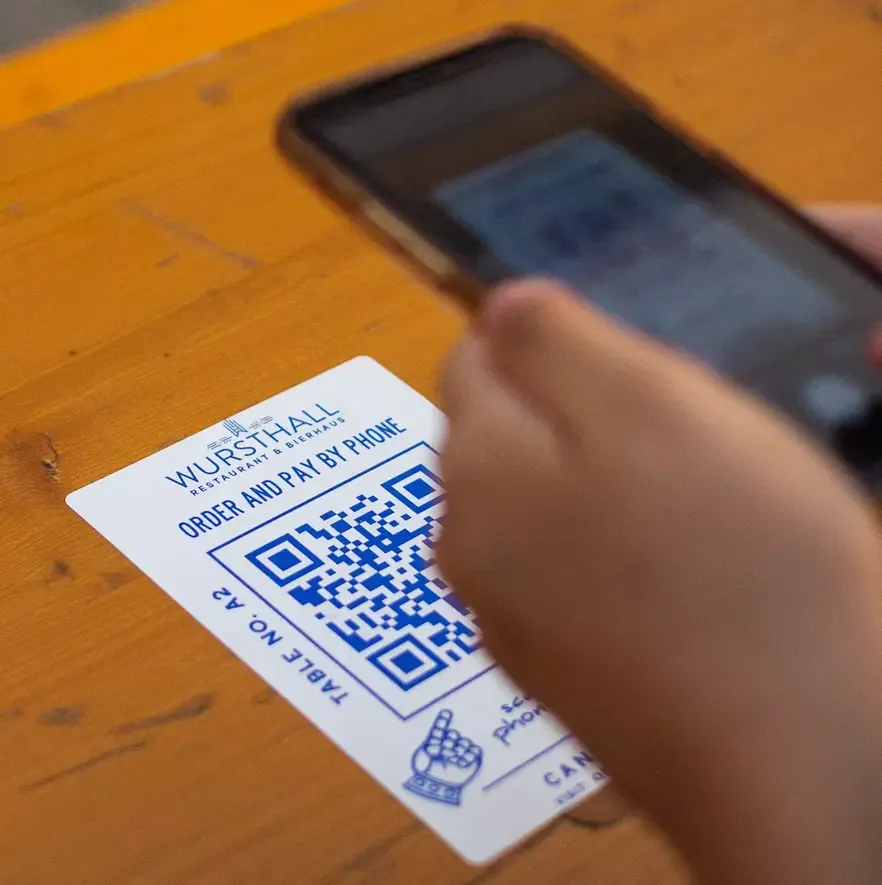
In this guide, you will learn how QR codes work for seniors, why integrated tools are far safer than standalone free apps, and how older adults can scan QR codes with just a single tap.
What Is a QR Code? (Explained Simply for Seniors)
A QR Code (short for Quick Response Code) is essentially a digital barcode. It looks like a square grid of small black and white squares.
Instead of typing a long web address (like www.example-clinic.com/patient-info-2026) character by character into a mobile browser, the smartphone camera reads the pattern instantly. The phone recognizes the saved link or message and opens it immediately.
Where Do Seniors Encounter QR Codes Today?
- Restaurants & Cafes: Digital menus, daily specials, or table ordering.
- Healthcare & Medicine: Medication leaflets, appointment reminders, or patient info sheets.
- Newspapers & Magazines: Video links or extra articles printed in daily papers.
- Events & Travel: Bus or train schedules, museum guidebooks, or event tickets.
- Wi-Fi Access: Connecting to family Wi-Fi networks without having to type long passwords.
The Problem with Standard QR Code Apps from the Play Store
When seniors or family members search for “QR Code Scanner” on the Google Play Store, they find hundreds of free applications. But after installation, the reality is often confusing and hazardous:
- Dangerous Ad Traps: Many free scanner apps display full-screen ads immediately upon launching. These ads often say “Your phone is slow – Clean now!” or “System update required!”. Unsure elderly users frequently tap these ads and unintentionally install unwanted software.
- Subscription Traps: Many scanners offer a “free trial”, but then automatically bill $3 to $10 per week (!) if not canceled immediately.
- Overcomplicated Interface: Tiny icons for flashlights, gallery imports, scanning history, and settings overwhelm older users. It’s rarely clear where to point the camera.
- Hard-to-Read Text: Scanning results are displayed in small, low-contrast fonts that are difficult for seniors with low vision to read.
The Solution: The Built-In QR Code Scanner in Juno Easy Launcher
With Juno Easy Launcher, your smartphone doesn’t need any shady 3rd-party scanner apps. Juno includes a fully integrated, 100% free, and completely ad-free QR code scanner.
Juno’s Core Design: Maximum usability, extra-large touch targets, and zero fluff.
Key Advantages of Juno’s QR Code Feature:
- 1-Tap Access: Place the QR scanner as a large, dedicated tile right on the main home screen (e.g., “Scan QR Code”).
- Crystal Clear Results: Once scanned, Juno displays the result in large, high-contrast typography.
- Only 2 Clear Actions: Seniors don’t have to figure out complex menus. There are only two big, self-explanatory buttons:
- Open Web Page: Opens the link directly in a clean browser window.
- Copy Text: Copies text (like Wi-Fi passwords or notes) to the clipboard.
- No Ads, No Subscriptions: Because the scanner is part of the core launcher, there are no pop-ups, banners, or upsells.
- Lock Protection for Relatives: Relatives can lock the home screen so the QR scanner tile can never be accidentally moved or deleted.
Comparison: Typical Play Store Scanner App vs. Juno Integrated Scanner
| Feature | Typical Play Store Scanner App | Juno Easy Launcher QR Scanner |
|---|---|---|
| Ads | ❌ Heavy (Aggressive banners & pop-ups) | ✅ 100% Ad-Free |
| Cost | ⚠️ Hidden subscriptions & in-app purchases | ✅ Completely free & built-in |
| Ease of Use | ❌ Complex camera UI & tiny buttons | ✅ 1-Tap from Home Screen |
| Readability | ❌ Small fonts & low contrast | ✅ Extra-large text & buttons |
| Privacy & Safety | ⚠️ Unnecessary permissions requested | ✅ 100% Safe & Private |
How Seniors Use the QR Scanner in Juno (Step-by-Step)
Setting up the feature takes less than a minute for family members:
- Add Tile: Open Juno settings, add a new tile to the home screen, and choose “QR Code Scanner”.
- Point Camera: When the senior taps “Scan QR Code”, the viewfinder opens. Simply point the camera at any QR code on paper, menus, or signs.
- Select Action: Juno reads the code instantly and shows the result. Tapping “Open Web Page” takes them right where they need to go!
Try It Out Yourself!
Want to experience how simple Juno Easy Launcher is?
If you are reading this guide on a computer or tablet, point your phone camera or QR scanner at the link below to view Juno in the Google Play Store:
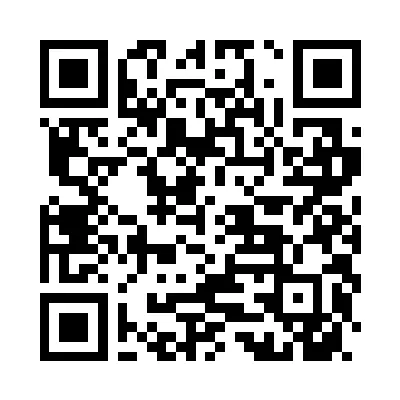
👉 Download Juno Easy Launcher on Google Play Store
Frequently Asked Questions (FAQ)
Do seniors need a separate QR scanner app on Android?
No. Most standalone QR scanner apps on the Play Store contain intrusive ads or paid subscriptions. An integrated scanner built into a senior launcher like Juno is by far the safest and easiest option.
Does the QR scanner work in low-light conditions?
Yes, the built-in scanner automatically adjusts to your smartphone camera’s lighting without requiring manual setup.
Can seniors accidentally make a purchase by scanning a QR code?
No. Juno always displays the scanned link or content first. The webpage is only opened when the user explicitly taps the large “Open Web Page” button.
Conclusion
Scanning a QR code shouldn’t be complicated or full of ad traps. With seamless integration into Juno Easy Launcher, seniors can scan restaurant menus, flyers, and doctor info sheets independently, safely, and without fear of making mistakes.
Protect your parents or grandparents from ad traps and try Juno Easy Launcher for free on the Google Play Store.